
When you add your photos and recordings directly to your eBird checklists they become part of the Macaulay Library—a multimedia wildlife archive that provides you with a secure way to organize and store your media. Every photo and sound added to your eBird checklists also helps build exciting tools such as the Merlin Bird ID app, Birds of the World, and All About Birds.
Quick Links
Upload Media Using the eBird Website
General Media Guidelines
Media must be your own and adhere to the media licensing agreement.
Media must be of the actual bird(s) you're reporting, not a similar bird or someone else’s media.
Media must have been recorded during the same date/time as the checklist.
Upload media for all birds, rare and common alike, as long as they’re identifiable.
Photos of nests, eggs, and field sketches are welcome; non-bird media should be added as checklist media.
Rating photos and audio helps curate the archive. Even if the media is not top quality, media of any rating has value once archived. See our guidelines for rating photos and rating audio.
Add notes to your media to give specific info about the bird(s). Media notes refer to that specific asset or file, whereas the observation details refer to that entire observation, which is often not just the bird that you photographed or recorded.
Add age and sex info for the bird(s) in the photo or recording if possible. You can search for examples of specific age/sex categories using the Media Search tool.
Enter additional species also present in the media whenever applicable.
Add behavior and other tags whenever applicable. See our tagging guidelines for more info.
Upload multiple media (maximum 20 photos, 10 audio per species), but only if they are sufficiently different (see below).
Choosing the Right Checklist
Media must be added to the eBird checklist that matches the exact date, time, and location where the recording was made. Adding photos or sounds from an earlier outing to a later checklist can lead to inaccurate data. The recording may suggest a species was present at a time or place when it actually wasn't, skewing eBird's data for research and conservation.
If you have media but no corresponding checklist—for example, an older recording you'd still like to contribute—follow the instructions for adding historical media without an existing list.
Media Processing
As soon as you add a photo, audio recording, or video to your eBird checklist, the media enters the Macaulay Library archival system where it is safely stored. When you add an audio recording to your eBird checklist, the sound file also gets sent to a queue where it awaits further processing to be displayed in eBird checklists and in the Macaulay Library search results.
Creating the visual representation of the audio (i.e., playable spectrogram) takes time and during the peak media contribution months of May and June this process can take longer than normal. While your recording is processing, please do not delete the file and try uploading it later. Doing so will only make the queue longer and increase processing times for everyone.
Photo Specific Guidelines
Please see the Photo upload guidelines page for more details.
Crop and edit your images before uploading, but do not over-crop or over-edit them.
Upload full-resolution images, as long as they are JPG and under 20 MB each.
Don’t add watermarks or other text to images. Your media will always be credited.
Don't upload composite images or back-of-camera photos.
Don't use AI tools to "enhance", replace, remove, or generate elements in a photo (see our AI Modification and Editing Policy).
Audio Specific Guidelines
Please see the Audio preparation and upload guidelines page for more details and tutorials.
Multiple files can be uploaded to the same species when you have more than one useful recording, but choose your best clips rather than uploading everything you captured. Avoid uploading several near-duplicate recordings of the same individual.
We encourage you to prioritize recordings that are:
Uncompressed .WAV files, which are higher quality than .mp3 or .m4a, up to 500 MB each. Recordings made with Merlin Sound ID are automatically saved in the correct format.
Clean and audible, without extreme handling noise or talking
Trimmed to remove excess noise from the ends and focus on the target species, but don’t over-trim.
Comprehensive: try to capture a representative sample of the species' vocalizations (5-10 per recording where possible).
Self-identified, rather than relying solely on Merlin Sound ID (or similar tools)
Well-documented with good notes, accurate recordist/equipment information, and background species noted
If you’re processing your sound recordings on a computer prior to upload, follow these additional recommendations:
Normalize the bird sounds to -3 dB and voice announcements to -10 dB.
Group all recordings from a single individual together in the same file, but upload recordings of different individuals as separate files.
Avoid filters and cosmetic editing; minimal editing is best.
Include voice announcements with additional information.
Field Habits for Better Recordings
Be intentional. Choose a bird to focus on rather than recording continuously and hoping something useful ends up in the file.
Get close, if you can do so safely and ethically. The closer your recording device is to the bird, the clearer and more useful the recording will be.
Stay quiet. Minimize talking, footsteps, and handling noise, and hold your device steady.
Consider an external microphone. A directional microphone plugged into your phone can go a long way towards making cleaner recordings.
What to Avoid
The following habits reduce the quality of a recording and create additional work for curators.
Long, untrimmed files where the focal species is somewhere in the middle
- Very short clips—either from over-trimming or from recording just a few seconds at a time
- Uploading the same recording to multiple species (duplication)
- Reporting a species based solely on Merlin Sound ID or similar automated tools, without independently confirming the identification yourself
- Uploading a clip for every bird you hear, or many near-duplicate files of the same individual
- Incidental recordings dominated by handling noise or talking
- Compressed audio formats like MP3 or M4A—use WAV format instead
- Garbled recordings caused by low-quality microphones or phone hardware
- Recordings added to the wrong checklist—make sure the date and location match
- Soundscape or Other Animal recordings added to individual species (for now, upload those recordings as checklist media)
Upload Media Using the eBird Website
Manage Media allows you to quickly add media to your eBird checklists and simultaneously edit data for multiple photos and recordings. Manage Media also enables you to rapidly add ratings, comments, behaviors, background species, and more to your media.
Record or take a picture of a bird.
Download the media to your computer.
Lightly edit the file as desired (see our guidelines for photo and sound preparation).
Go to your eBird checklist containing the record for that specific bird (any photo/sound you upload must be of the actual bird(s) you're reporting, not a bird you saw like it or someone else's photo).
Click "Add Media" in the top right of any checklist to begin adding media, or click "Manage Media" if you already have media in that checklist.
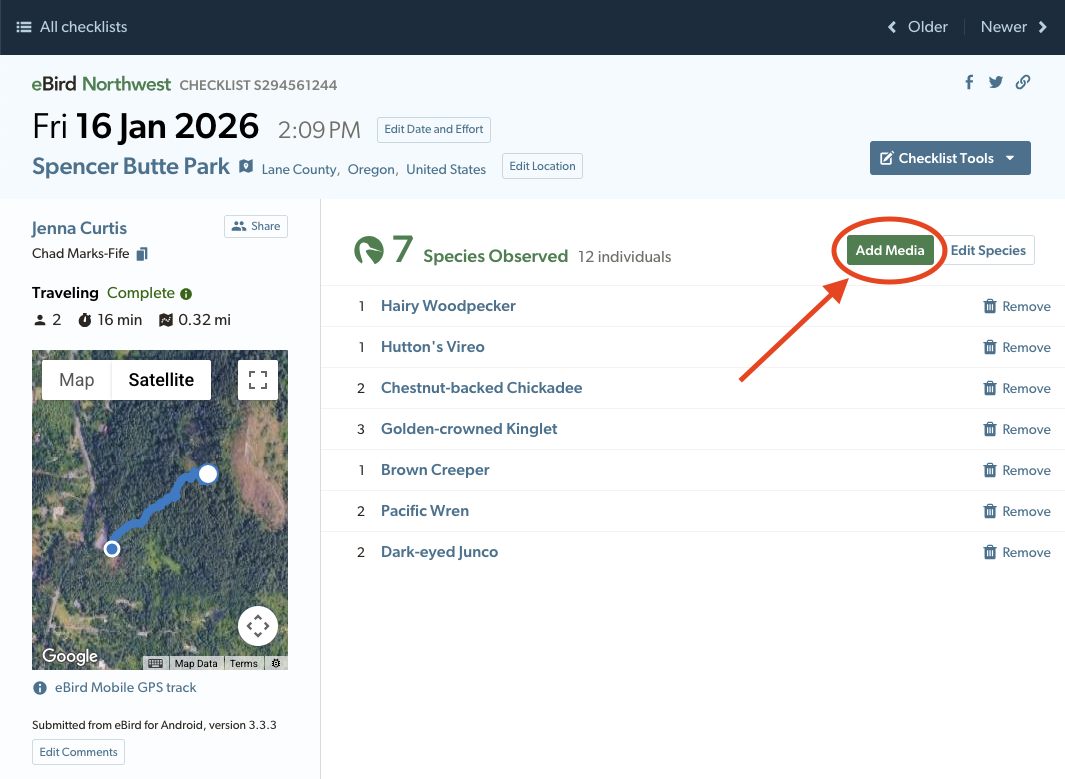
If the Add Media / Manage Media button doesn’t appear, make sure you are logged into your eBird account.
Upload media for a species by clicking "Add Media" next to that species name OR drag and drop the file from your computer onto the corresponding species.
Use the sidebar on the right to add ratings (see our guidelines for rating photos and rating audio), comments, behaviors and background species, and more.

Repeat as desired (up to 10 files per species).
Click "Done" in the top right to return to the checklist once the changes are autosaved.
Bask in the beauty of your checklist!
Quick tips for faster tagging:
- Use the View icons in the top left to filter down to all media, only photos, or only audio.
- To select a range of media, Click, then Shift + Click the asset at the end of the range.
- To select/deselect individual media, use Ctrl or Command + Click.
- To select all media, use Ctrl or Command + A.
Upload Media in eBird Mobile
Mobile Photo Upload
At this time, all photos—including photos from your phone—should be uploaded to submitted checklists via the eBird website.
To upload a photo from your phone to an eBird Mobile checklist:
Open eBird Mobile, tap Checklists (at the bottom of the screen), then select "Submitted"
Tap the checklist you want to add photos to
Tap the curved arrow in the upper right corner (the middle icon)
Select the green "Add media" button and follow Steps 5-10 of the instructions to Upload Media on the eBird Website (above). You will be able to access and upload images from your phone's photo gallery.
If you don't see the green "Add media" button: make sure you are logged in to eBird. Tap the three lines in the upper right corner of the webpage, scroll down the menu and look for your username.
Mobile Audio Upload
Record bird sounds with any app and upload them directly to your checklists in eBird Mobile.
- Log bird observations and record sounds at the same time. The easiest way to do this is to keep a running eBird Mobile checklist open while recording sounds with your favorite app.
Recording with Merlin Sound ID is recommended because it records in WAV format and shares directly to eBird with just a couple of taps. If using another app, check your settings to record in WAV format, which is far more useful than MP3 or M4A. Avoid built-in voice memo apps as they typically record in low quality. - Open any checklist in eBird Mobile.
For already submitted checklists: tap the pencil and box icon (upper right corner) to open the species entry screen. - Share the recording from your recording app to eBird.
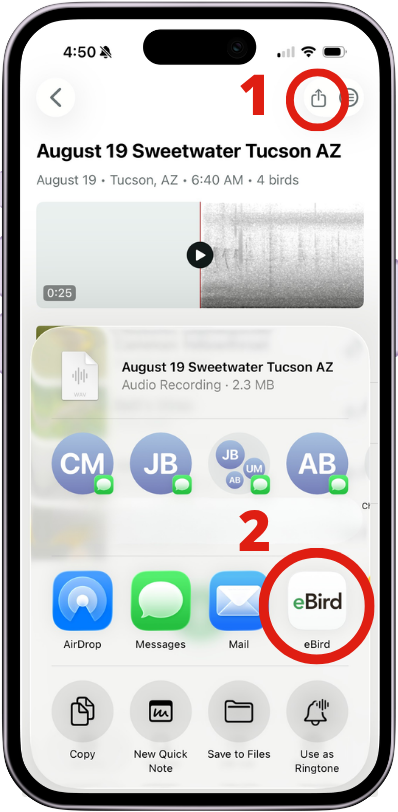
In Merlin: open a stored Sound ID Session, select a recording, tap the share icon in the upper right corner, and choose eBird from the sharing options.
In other recording apps: use that app's share or export function and select eBird from the list of sharing options, if available. - Follow the prompts in eBird Mobile to finish attaching the recording:
- Choose which species the recording belongs to
- Trim the recording to remove handling noise and focus on the bird
- Confirm the recording device and add notes about the context (optional but very useful)
- Recordings upload when the checklist is submitted.
- After uploading, open your checklist on eBird.org when you can to add further metadata—background species, equipment, and other details are easier to add on a larger screen.
Can I add recordings while offline?
Yes, you can record birds and add sound recordings to active and Not Submitted checklists* while offline. Once you’re back in service or on Wifi, submit the checklist and the audio files will upload too.
*You do need a data connection to open Submitted checklists on eBird Mobile, so those have to wait until you are online.
What to Record With Your Phone
Follow our Audio Guidelines. Prioritize recordings of rare birds (especially Target Species for your region on the Sound Recording Dashboard), unusual vocalizations, or very high quality examples over general ambient sound or distant species.
Focus on one species at a time and try to capture a representative sample of the species' vocalizations (5-10 per recording where possible). Aim for 1-2 high-quality recordings per species per checklist, each 30 seconds to a few minutes long.
Be selective. Record with intention and upload only your best clips for each species. If uploading more than one recording per species, each recording should be distinct, such as capturing different individuals or vocalization types. Avoid uploading several near-identical clips of the same bird.
Soundscapes and Other Animal recordings should NOT be uploaded through this mobile workflow at this time. Continue uploading these as Checklist Media via the eBird website for now.
Using Merlin Bird ID? If you're reporting a species suggested by Merlin, be sure to:With the eBird Mobile workflow above, it’s easy to share recordings directly from Merlin Sound ID with just a couple of taps!
- Confirm you can hear the vocalization in the recording.
- Independently verify the ID yourself.
- Upload the Merlin recording to that species, trimmed to the portion where it's audibly vocalizing.
The Importance of Trimming
Trimming is what turns a raw recording into something genuinely useful for identification, research, and the Macaulay Library archive. Keep these principles in mind:
Focus on the target species. Trim the recording to the section where your target bird is clearly vocalizing, and especially seek to remove interference in the form of handling noise or other interruptions at the beginning and end.
Don't over-trim. Keep longer sections when you can. A clip that's too short to capture a full vocalization or series of calls is less useful than one that runs a bit longer. When in doubt, leave more in rather than trimming too tightly.
If a recording features two species loudly enough to be useful for both, trim clips for each species separately rather than uploading the exact same clip to both.
Additional Media Tips
Sharing checklists with media
Sharing eBird checklists allows your media to be visible in your friends' checklists too, even if it is uploaded after sharing. For copyright reasons, only the person who took a photo or made a recording can upload it. If you were with someone and want to have their media show up in your list, ask them to share their checklist, or share yours and ask them to upload their media!
Changing identifications
The identification of uploaded media can be changed, but this is currently done outside of the Manage Media tool. Click Edit Species on your checklist, then click Change Species next to the media to change just that media. Alternatively, click Change Species next to the species name to change the entire observation (including all media associated with it.) See full instructions about the Change Species process.

Multiple images or recordings of the same species
We encourage you to add multiple photos that show different individuals, parts, angles, or behaviors of the species as well as photos illustrating different individuals seen while you are out birding. However, multiple images should illustrate differences and not be nearly identical frames from the same burst of shots.
Sound recordings of different vocalizations from one or more bird(s) of the same species are also extremely valuable.If processing recordings on a computer, group recordings of the same individual together in a single file with 1 second of silence between clips. See our Audio Preparation and Upload Guidelines for more information.
Note that in the checklist view, media will sort in the order in which they initialize and start uploading, which is not necessarily the order that you drop them in. If the order of media in your checklist is important to you, make sure to upload files sequentially and wait for upload to finish on each.
Multiple species in the same image or recording
Each media asset must be uploaded to only one species, but you can use the Additional Species field in Manage Media to tag other species present in the media. Note that an additional species can only be selected if it is also reported on the checklist to which you’re uploading media. If you have photos emphasizing different species in the group, upload these to different species as you see fit. Uploading identical photographs or recordings to two or more different species is not encouraged.
Media upload FAQ
If you have any more questions, please see the list of frequently asked questions.